
How to Use the YouTube API to Fetch Video Data in Google Sheets: Automate with Google Apps Script!

n this article, I’ll show you how to use the API key set up in the previous post and leverage Google Apps Script (GAS) to compile YouTube video information into a Google Sheet.
By using the YouTube API, you can easily analyze your own channel or compile video information from your favorite channels into a Google Sheet.
Manual input is no longer required, and data such as video title, release date, channel title, and video URL can be efficiently retrieved.

Completed image
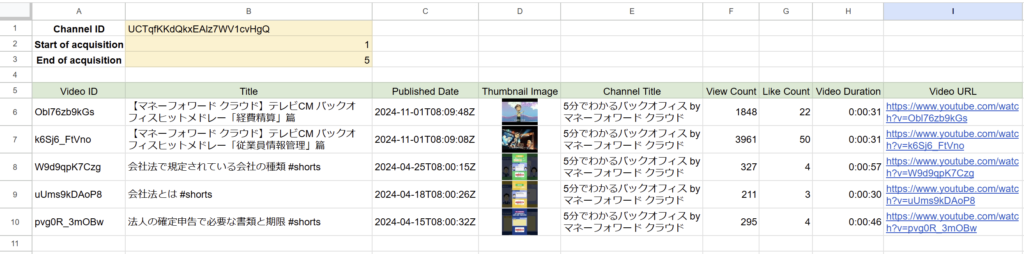
Listed in a spreadsheet based on the specified channel ID and number of videos
Basic information about each video is listed in a spreadsheet for easy visual understanding and organization.
Prepare YouTube API Key
Obtain a YouTube Data API v3 API key and set it to a script property.
Script Property Name Example: "YOUTUBE_DATA_API_KEY"
Steps

Enter the YouTube Channel ID in cell B1.
In cell B2, enter the starting position, and in cell B3, enter the ending position to retrieve data.
For example, if you set it to 1–10, the script will retrieve the 10 most recent videos.
The sheet is referenced as “Video Information” during script execution.
Modify the sheet name as needed.
In row 5, enter the following items as headers:
Header Items (Example):
| 入力内容 | |
|---|---|
| A5 | Video ID |
| B5 | Title |
| C5 | Published Date |
| D5 | Thumbnail Image |
| E5 | Channel Title |
| F5 | View Count |
| G5 | Like Count |
| H5 | Video Duration |
| I5 | Video URL |
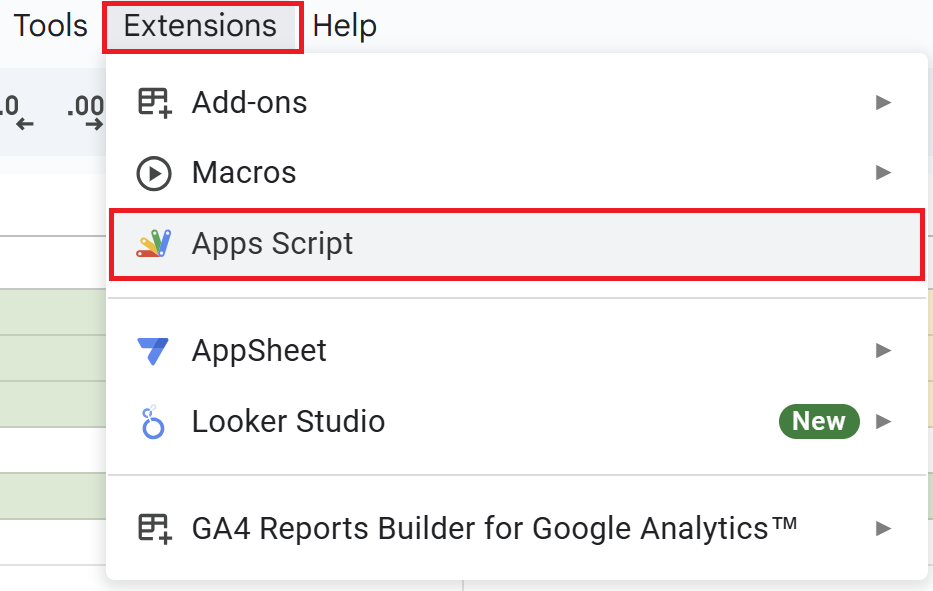
Open a Google Spreadsheet and click on “Extensions” in the menu, then “Apps Script” to open the Apps Script editor.
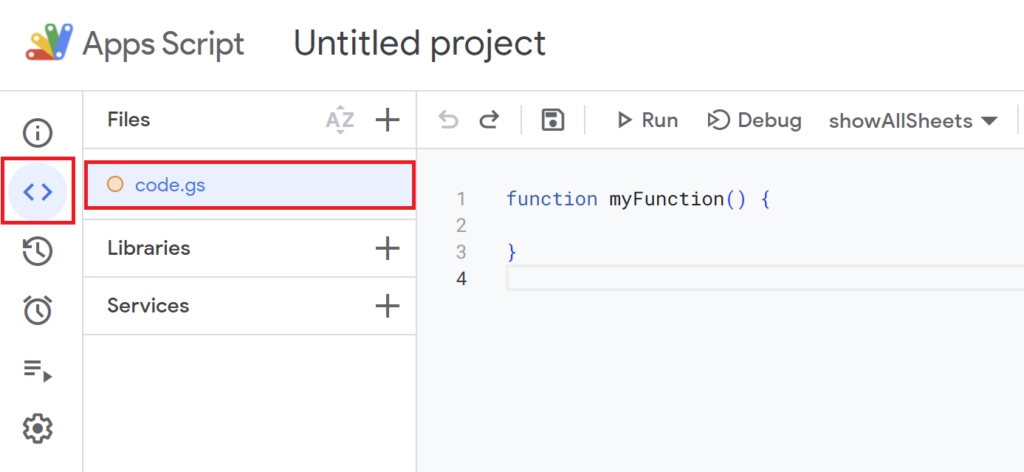
function myFunction(){
}
is included from the beginning, so delete it and paste the previous script.
function fetchAndWriteYouTubeData() {
    var sheet = SpreadsheetApp.getActiveSpreadsheet().getSheetByName("Video Information");
    if (!sheet) {
        Logger.log("Sheet 'Video Information' not found.");
        return;
    }

    // Retrieve the API key from script properties
    var apiKey = PropertiesService.getScriptProperties().getProperty('YOUTUBE_DATA_API_KEY');
    Logger.log("API Key: " + apiKey);

    // Retrieve the channel ID from cell B1
    var channelId = sheet.getRange("B1").getValue();
    Logger.log("Channel ID: " + channelId);

    // Retrieve the range from cells B2 and B3
    var startIndex = parseInt(sheet.getRange("B2").getValue()) || 1;
    var endIndex = parseInt(sheet.getRange("B3").getValue()) || 10;
    var maxResults = Math.min(endIndex - startIndex + 1, 100);
    Logger.log(`Start Index: ${startIndex}, End Index: ${endIndex}`);

    // YouTube Data API URL
    var baseUrl = `https://www.googleapis.com/youtube/v3/search?key=${apiKey}&channelId=${channelId}&part=snippet&order=date&type=video&maxResults=100`;

    var videos = []; // Store video data
    var nextPageToken = '';
    var totalFetched = 0;

    // Use pagination to fetch video data
    while (nextPageToken !== null && totalFetched < endIndex) {
        var url = baseUrl + (nextPageToken ? `&pageToken=${nextPageToken}` : '');
        var response = UrlFetchApp.fetch(url);
        var data = JSON.parse(response.getContentText());
        if (!data.items) {
            Logger.log("No data retrieved.");
            break;
        }

        videos = videos.concat(data.items);
        totalFetched += data.items.length;

        nextPageToken = data.nextPageToken || null;
        Logger.log(`Fetched ${data.items.length} videos, Total fetched: ${totalFetched}`);
    }

    // Extract the required range and retrieve video IDs
    var videoIds = videos.slice(startIndex - 1, endIndex).map(item => item.id.videoId).join(',');

    // Fetch detailed information (view count, likes, duration) using the videos endpoint
    var detailsUrl = `https://www.googleapis.com/youtube/v3/videos?key=${apiKey}&id=${videoIds}&part=snippet,contentDetails,statistics`;
    var detailsResponse = UrlFetchApp.fetch(detailsUrl);
    var detailsData = JSON.parse(detailsResponse.getContentText());

    // Get the next row to write data
    var lastRow = sheet.getLastRow();

    // Write data to the spreadsheet
    detailsData.items.forEach(function(item, index) {
        var videoId = item.id;
        var title = item.snippet.title;
        var publishedAt = item.snippet.publishedAt;
        var thumbnailUrl = item.snippet.thumbnails.default.url; // Default thumbnail URL
        var channelTitle = item.snippet.channelTitle;
        var viewCount = item.statistics.viewCount;
        var likeCount = item.statistics.likeCount;
        var videoUrl = `https://www.youtube.com/watch?v=${videoId}`;

        // Format the video duration from ISO 8601
        var duration = formatDuration(item.contentDetails.duration);

        Logger.log(`Writing to row ${lastRow + index + 1}: ${title}`);

        sheet.getRange(lastRow + index + 1, 1).setValue(videoId);         // Column A: Video ID
        sheet.getRange(lastRow + index + 1, 2).setValue(title);           // Column B: Title
        sheet.getRange(lastRow + index + 1, 3).setValue(publishedAt);     // Column C: Publish Date
        sheet.getRange(lastRow + index + 1, 4).setFormula(`=IMAGE("${thumbnailUrl}")`); // Column D: Thumbnail
        sheet.getRange(lastRow + index + 1, 5).setValue(channelTitle);    // Column E: Channel Title
        sheet.getRange(lastRow + index + 1, 6).setValue(viewCount);       // Column F: View Count
        sheet.getRange(lastRow + index + 1, 7).setValue(likeCount);       // Column G: Like Count
        sheet.getRange(lastRow + index + 1, 8).setValue(duration);        // Column H: Video Duration
        sheet.getRange(lastRow + index + 1, 9).setValue(videoUrl);        // Column I: Video URL
    });
}

// Convert ISO 8601 duration to "HH:MM:SS" format
function formatDuration(duration) {
    var matches = duration.match(/PT(\d+H)?(\d+M)?(\d+S)?/);
    var hours = (matches[1] ? matches[1].replace('H', '') : '00').padStart(2, '0');
    var minutes = (matches[2] ? matches[2].replace('M', '') : '00').padStart(2, '0');
    var seconds = (matches[3] ? matches[3].replace('S', '') : '00').padStart(2, '0');
    return `${hours}:${minutes}:${seconds}`;
}
Script Description
- Checking the Sheet and Retrieving the API Key
-
var sheet = SpreadsheetApp.getActiveSpreadsheet().getSheetByName("Video Information"); if (!sheet) { Logger.log("Sheet 'Video Information' not found."); return; } // Retrieve the API key from script properties var apiKey = PropertiesService.getScriptProperties().getProperty('YOUTUBE_DATA_API_KEY'); Logger.log("API Key: " + apiKey);- Retrieve the sheet named “Video Information,” and if it does not exist, log a message and terminate the process.
- Retrieve the “YouTube Data API” key from the script properties and use it for subsequent API requests.
- Setting the Channel ID and Retrieval Range
-
// Retrieve the channel ID from cell B1 var channelId = sheet.getRange("B1").getValue(); Logger.log("Channel ID: " + channelId); // Retrieve the range from cells B2 and B3 var startIndex = parseInt(sheet.getRange("B2").getValue()) || 1; var endIndex = parseInt(sheet.getRange("B3").getValue()) || 10; var maxResults = Math.min(endIndex - startIndex + 1, 100); Logger.log(`Start Index: ${startIndex}, End Index: ${endIndex}`);- Retrieve the Channel ID from cell B1 and use it as the target for the API request.
- Set the start and end positions of the videos to be retrieved based on the range specified in cells B2 and B3.
- Retrieve Video Information Using the YouTube API
-
// YouTube Data API URL var baseUrl = `https://www.googleapis.com/youtube/v3/search?key=${apiKey}&channelId=${channelId}&part=snippet&order=date&type=video&maxResults=100`; var videos = []; // Store video data var nextPageToken = ''; var totalFetched = 0; // Use pagination to fetch video data while (nextPageToken !== null && totalFetched < endIndex) { var url = baseUrl + (nextPageToken ? `&pageToken=${nextPageToken}` : ''); var response = UrlFetchApp.fetch(url); var data = JSON.parse(response.getContentText()); if (!data.items) { Logger.log("No data retrieved."); break; } videos = videos.concat(data.items); totalFetched += data.items.length; nextPageToken = data.nextPageToken || null; Logger.log(`Fetched ${data.items.length} videos, Total fetched: ${totalFetched}`); }- Retrieve up to 100 videos from the channel using the YouTube Data API’s search endpoint.
- Use pagination to repeatedly fetch videos until the specified range is fully retrieved.
- Creating a List of Video IDs and Retrieving Video Details
-
// Extract the required range and retrieve video IDs var videoIds = videos.slice(startIndex - 1, endIndex).map(item => item.id.videoId).join(','); // Fetch detailed information (view count, likes, duration) using the videos endpoint var detailsUrl = `https://www.googleapis.com/youtube/v3/videos?key=${apiKey}&id=${videoIds}&part=snippet,contentDetails,statistics`; var detailsResponse = UrlFetchApp.fetch(detailsUrl); var detailsData = JSON.parse(detailsResponse.getContentText());- Create a list of video IDs from the retrieved videos within the specified range, and fetch detailed information such as view count, like count, and video duration in a single request.
- Writing to the Spreadsheet
-
// Write data to the spreadsheet detailsData.items.forEach(function(item, index) { var videoId = item.id; var title = item.snippet.title; var publishedAt = item.snippet.publishedAt; var thumbnailUrl = item.snippet.thumbnails.default.url; // Default thumbnail URL var channelTitle = item.snippet.channelTitle; var viewCount = item.statistics.viewCount; var likeCount = item.statistics.likeCount; var videoUrl = `https://www.youtube.com/watch?v=${videoId}`; // Format the video duration from ISO 8601 var duration = formatDuration(item.contentDetails.duration); Logger.log(`Writing to row ${lastRow + index + 1}: ${title}`); sheet.getRange(lastRow + index + 1, 1).setValue(videoId); // Column A: Video ID sheet.getRange(lastRow + index + 1, 2).setValue(title); // Column B: Title sheet.getRange(lastRow + index + 1, 3).setValue(publishedAt); // Column C: Publish Date sheet.getRange(lastRow + index + 1, 4).setFormula(`=IMAGE("${thumbnailUrl}")`); // Column D: Thumbnail sheet.getRange(lastRow + index + 1, 5).setValue(channelTitle); // Column E: Channel Title sheet.getRange(lastRow + index + 1, 6).setValue(viewCount); // Column F: View Count sheet.getRange(lastRow + index + 1, 7).setValue(likeCount); // Column G: Like Count sheet.getRange(lastRow + index + 1, 8).setValue(duration); // Column H: Video Duration sheet.getRange(lastRow + index + 1, 9).setValue(videoUrl); // Column I: Video URL }); }- Write video information sequentially into each cell from columns A to I.
- Use the
=IMAGE()function to display the thumbnail image within the cell. - After writing, the data is appended to the next available row, ensuring that existing data is not overwritten, even when retrieving video information in multiple batches.
- Convert Video Duration to “HH:MM” Format
-
// Convert ISO 8601 duration to "HH:MM:SS" format function formatDuration(duration) { var matches = duration.match(/PT(\d+H)?(\d+M)?(\d+S)?/); var hours = (matches[1] ? matches[1].replace('H', '') : '00').padStart(2, '0'); var minutes = (matches[2] ? matches[2].replace('M', '') : '00').padStart(2, '0'); var seconds = (matches[3] ? matches[3].replace('S', '') : '00').padStart(2, '0'); return `${hours}:${minutes}:${seconds}`; }- Since the video duration is retrieved in ISO 8601 format, a function is provided to convert it into the “HH:MM” format.
- This function converts the retrieved video duration into a readable format and writes it to the spreadsheet.
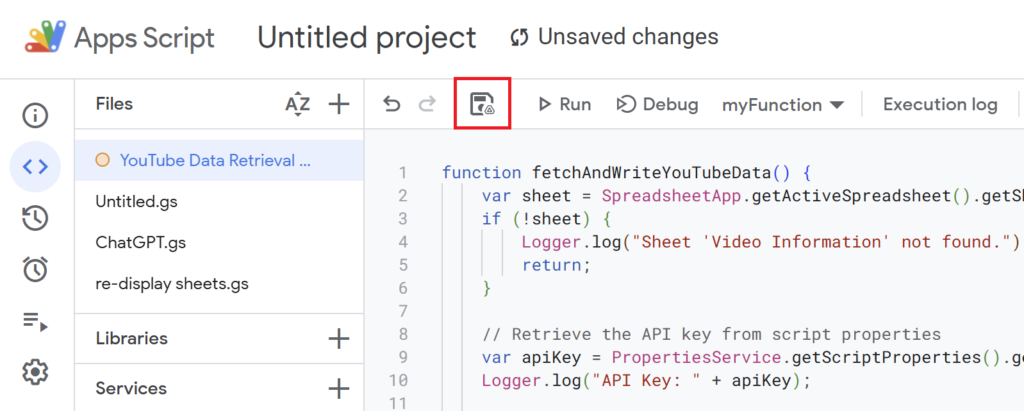
Once the script is written, save it with an appropriate name.
(Example: “YouTube Data Retrieval”)
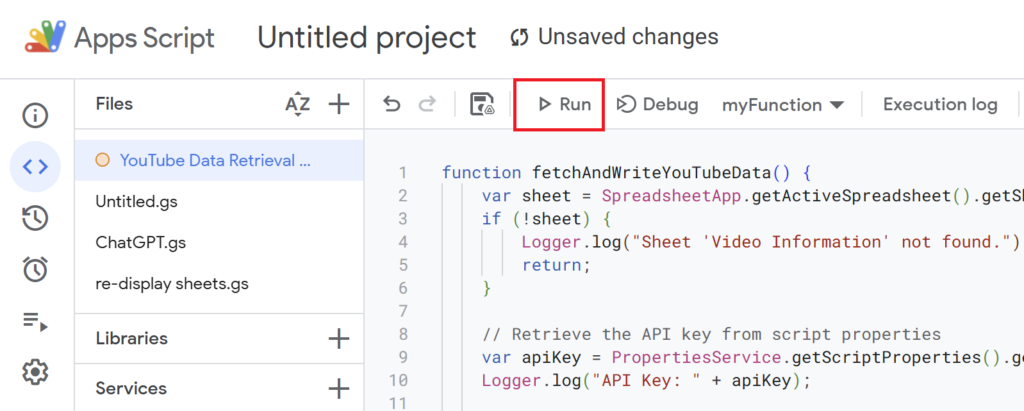
Running the script will retrieve YouTube data.
If you’re running the script for the first time, you need to authorize it.
Therefore, press “Review Permissions.“
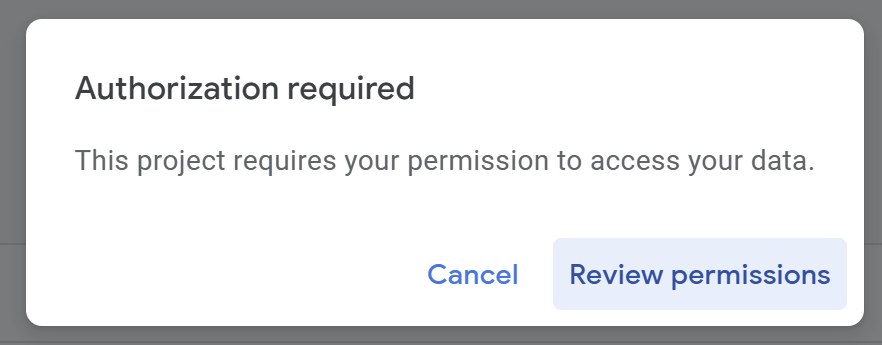
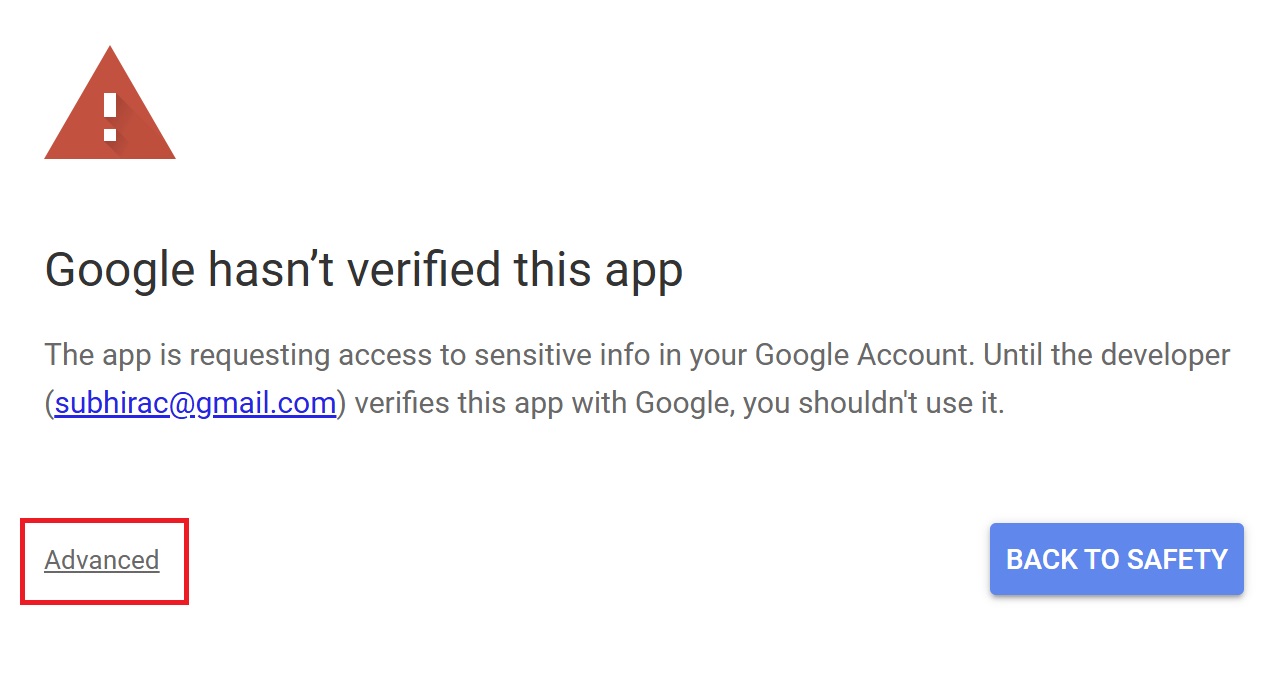
Detailed Authorization Steps
Press “Advanced.”
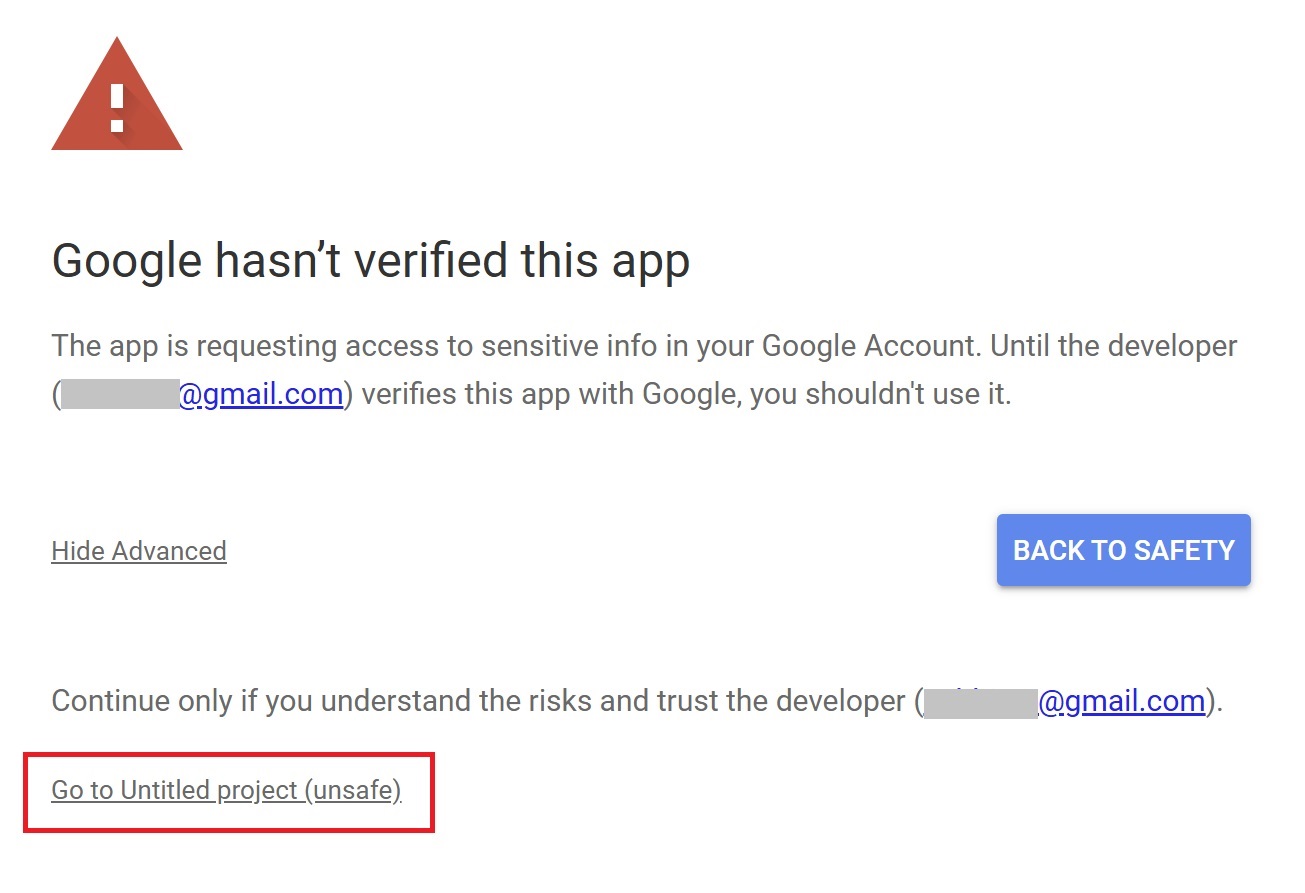
Press “Go to Untitled project (Unsafe).”
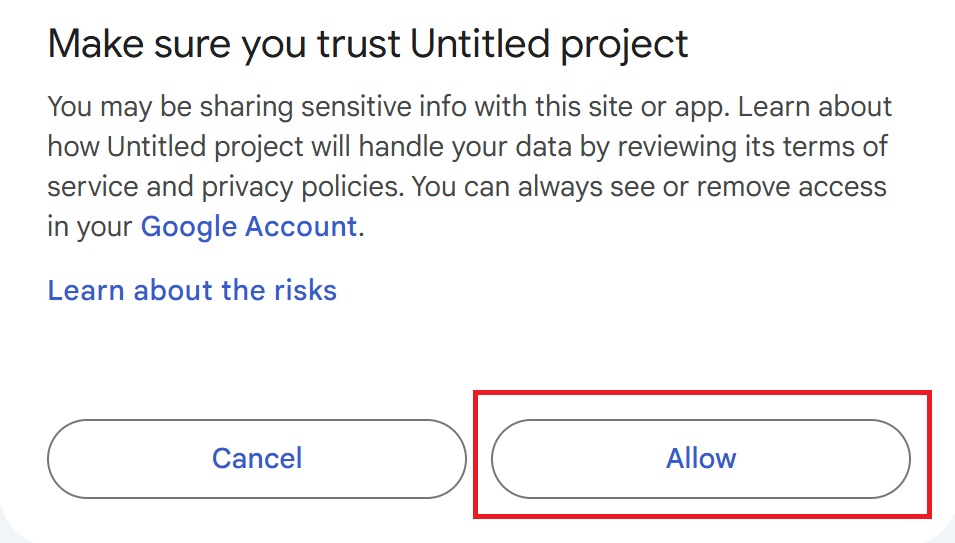
After that, press “Allow.”
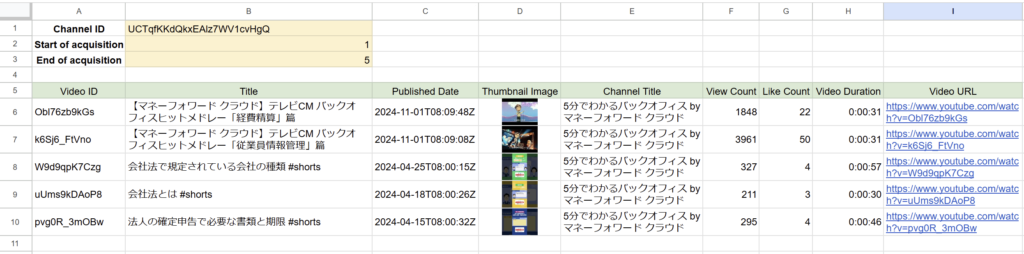
The spreadsheet will display the specified number of videos in a list, sorted in descending order by date.
By specifying the range of videos to retrieve (start and end) in cells B2 and B3, you can fetch videos from different ranges.
For example, if you first retrieve videos 1–10 and then specify 11–20 and run the script, the new video information will be added below the already retrieved data.
Points to Note When Using the YouTube API
- Be Aware of API Quota Limits
-
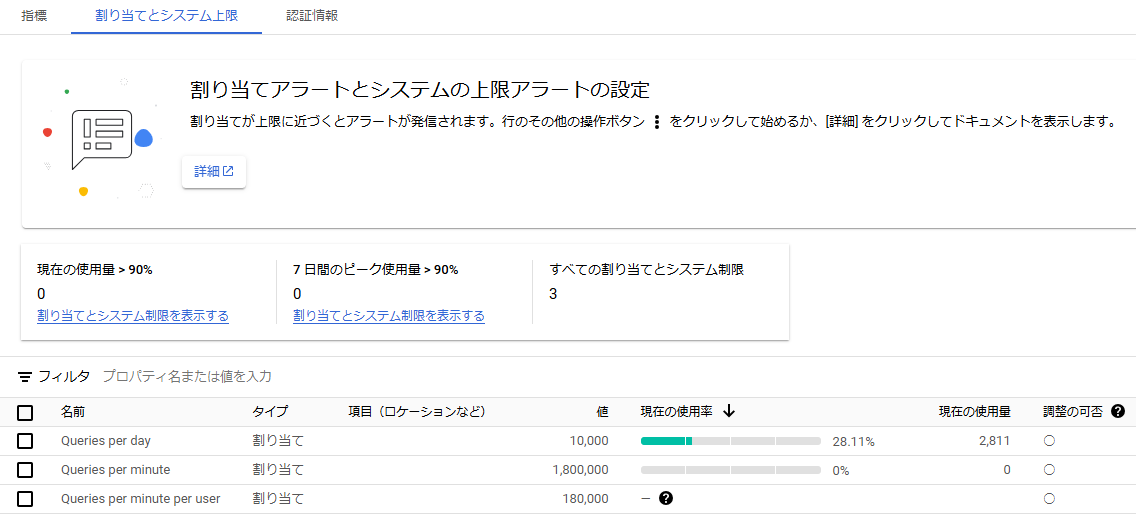
- The YouTube Data API has a daily usage limit of 10,000 quota units.
- Requests for detailed information (such as view count and like count) consume 5 quota units per video.
- For example, retrieving detailed information for 100 videos will consume 100 videos × 5 quota units = 500 quota units.
- Fetching a large amount of data at once can quickly reach the quota limit.
- Adjust the Number of Videos Retrieved Per Request
-
- It is recommended to retrieve around 50–100 videos per script execution.
- Specify the range in cells B2 and B3 of the spreadsheet and collect data in multiple batches for better efficiency.
- Checking API Usage
-
You can check your API usage in the Google Cloud Console.
確認方法
- Log in to the Google Cloud Console.
- Navigate to APIs & Services > Dashboard.
- Select the project associated with your YouTube Data API key.
- Locate the YouTube Data API v3 in the list of enabled APIs.
- View the usage statistics, including quota consumption and remaining limits.

- When the Quota Limit is Reached
-
If the daily quota limit is reached, you can retrieve the data by running the script again the following day.
Conclusion
Using this method, you can easily compile video data not only from your own channel but also from your favorite channels into a Google Sheet.
Since detailed information such as view count, like count, and video duration can also be retrieved, it makes analysis and management much more efficient.



Our company offers support for improving work efficiency through the use of Google Apps Script.
If you need assistance with Google Apps Script customization or error resolution, please feel free to contact us.
We are fully committed to supporting your business improvements.
Contact us here
- YouTube API Key Setup: Export and Manage Video Data in Google Sheets
- How to Generate Barcodes Easily: A Step-by-Step Guide Using Google Sheets
関連記事
-
Google Calendar Free Time Finder Template|Google Sheets × Apps Script
-
How to Find Common Free Time in Google Calendar: Manage Shared Schedules with Google Apps Script
-
Ready-to-Use Google Calendar to Sheets Export Template| Google Sheets & Apps Script
-
Export Google Calendar Events to a Spreadsheet|Easily Get Schedules for Multiple Users with Google Apps Script
-
Gmail Draft Duplication Template | Attachments Supported! Automate with Google Sheets × Apps Script
-
Gmail Bulk Sending Template | Easily Send to Multiple Recipients via Google Sheets
-
Google News Fetch Template: Streamline Information Gathering with Google Apps Script and Google Sheets
-
Google Sheets YouTube API: Retrieve and List 500+ Videos with Apps Script