
Google Sheets + Google Maps: Automatically Generate Map Links from Addresses

Google Maps links are useful, but does it take a lot of time to display each one if there are many places you want to check?
In particular, if you have addresses that you use frequently or locations that you want to list and manage, being able to create links together makes access easy and facilitates your work.
Therefore, this article introduces an efficient way to utilize spreadsheets to automatically generate map links from addresses.
Simply enter an address and a link will be generated, allowing you to manage multiple points and routes at once, facilitating business and daily operations.
Completion Image
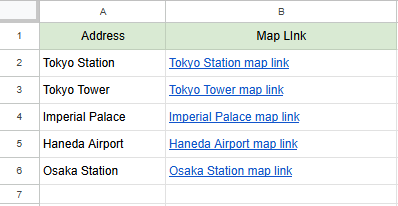
Map links for each location
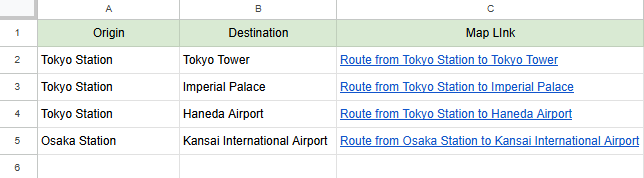
Route link between two points
- When an address is entered, a link is generated by a mathematical formula.
- Used to keep track of addresses to be visited, lists to check routes for business trips, etc.
How Google Maps Links Work
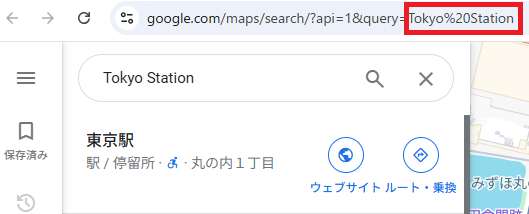
In Google Maps, simply include an address in the URL query to create a link that will search for and display that address.
For example, use the following URL
https://www.google.com/maps/search/?api=1&query=Address
By putting a specific address in the “Address” section here, a link will be created that will allow you to view that location on Google Maps.
This mechanism is used to automatically generate links from address data on a spreadsheet.
Map Link Generation for Each Location
Procedure
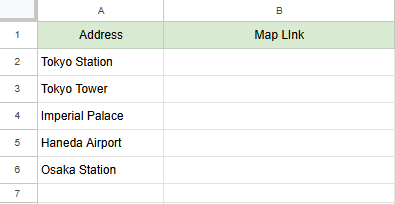
Prepare address data in a spreadsheet.
For example, set up column A to enter an address.
In each cell, enter the address of the respective visit or destination.
- A2: Tokyo Station
- A3: Tokyo Tower
- A4: Imperial Palace
- A5: Haneda Airport
- A6: Osaka Station
Next, prepare a column to display the map link.
Set column B as “Map Link” and use it to generate a Google Map link based on the address in column A.
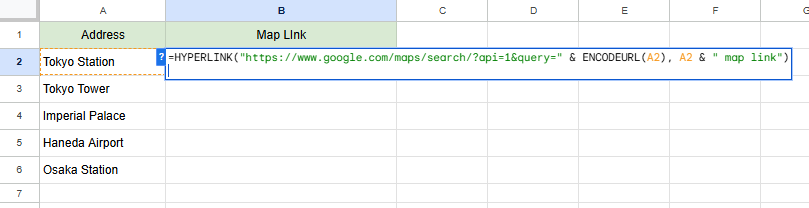
In column B, enter a formula that generates a Google Map link based on the address in column A.
The formula is as follows:
=HYPERLINK("https://www.google.com/maps/search/?api=1&query=" & ENCODEURL(A2), A2 & " map link")Formula Details
- HYPERLINK
-
- Function to generate links.
- Set the URL of the link as the first argument and the display name of the link (“map link”) as the second argument.
- ENCODEURL
-
- Encodes spaces and Japanese characters in addresses and converts them into a format that can be used as a URL.
Enter the above formula in cell B2 and copy it down to generate a link corresponding to the address or facility name in each row.
You will now see the auto-generated Google Map link on the spreadsheet.
Formula input results (map link for each location)
Google Map
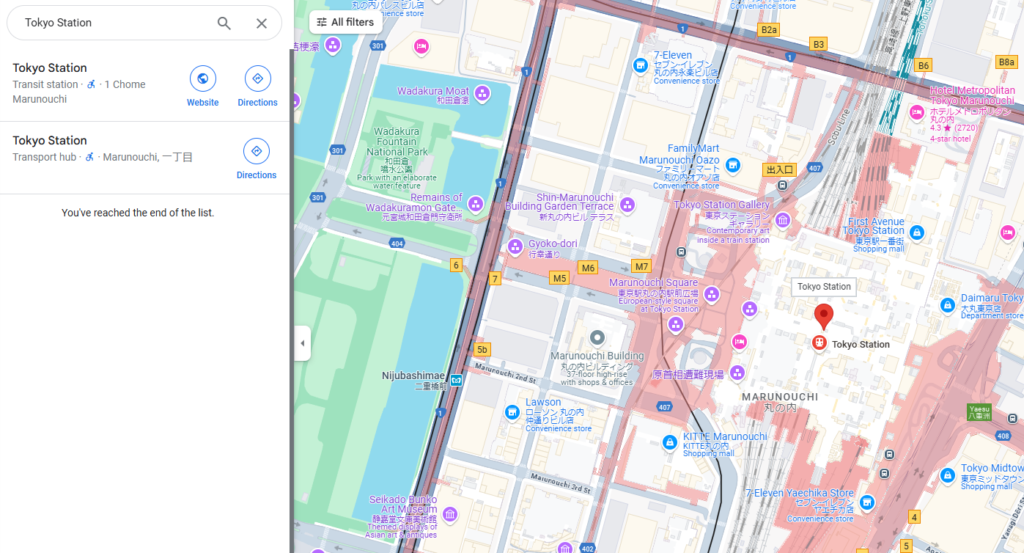
When the link is opened, a Google map of the location entered in column A will be displayed.
Route link generation from starting point and destination
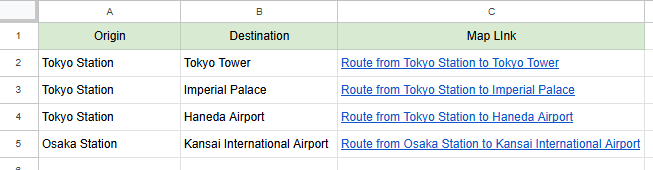
By entering a starting point and a destination, we will also show you how to automatically generate a link that displays the route between the two points.
If you generate route links in a spreadsheet, you can easily navigate between two points.
Procedure
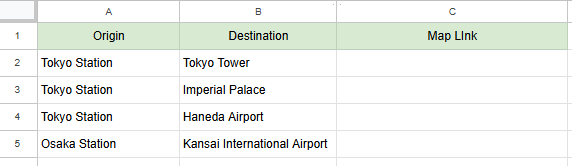
As an example, enter “Origin” in column A and “Destination” in column B.
Column C contains the formula for the route link.
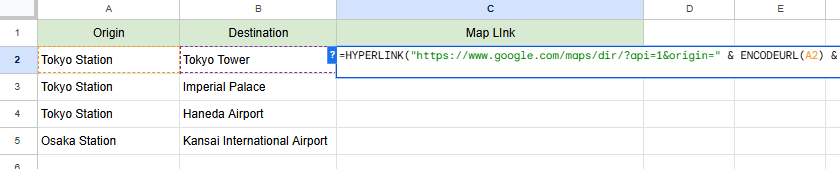
Enter the following formula in column C
A route map link is generated based on the contents of columns A and B.
=HYPERLINK("https://www.google.com/maps/dir/?api=1&origin=" & ENCODEURL(A2) & "&destination=" & ENCODEURL(B2), "Route from " & A2 & " to " & B2)Formula Details
HYPERLINK(url, 表示名)-
- By specifying “origin” and “destination” in the URL portion, the route between two points is displayed on Google Maps.
- The display name is labeled as “Route from origin to destination” with a link to be found on the Google Sheets.
Enter the above formula in cell C2 and copy it down to generate a link corresponding to the address or facility name in each row.
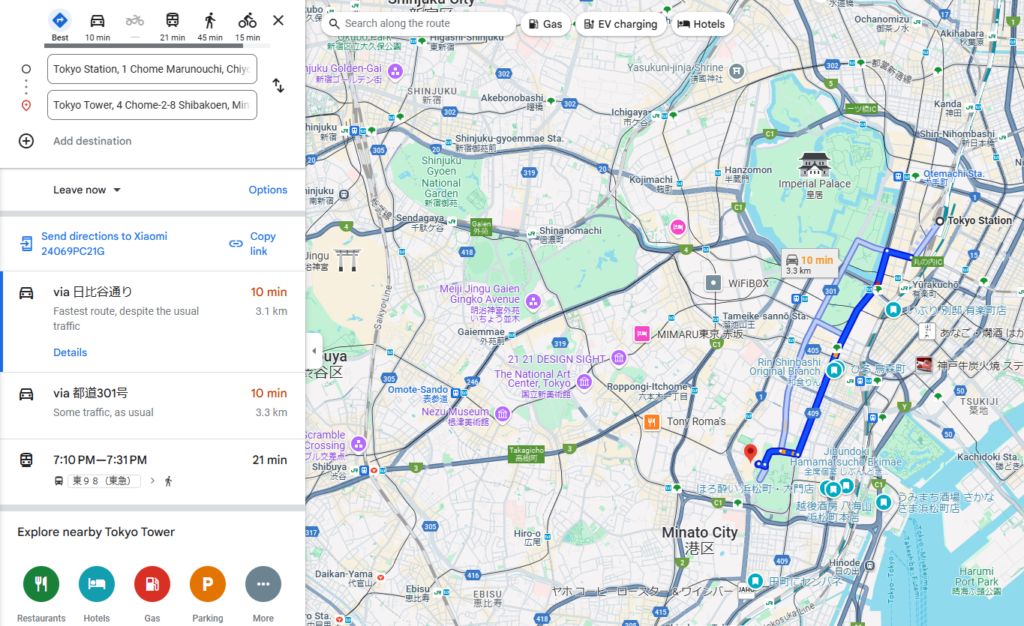
The route map link between the two points will now be displayed.
Formula input result (route map)
Google Maps (route)
Route map link generation with additional waypoints

Google Maps also allows you to add “via locations” and create detailed routes along the order of visits.
In addition to origin and destination, one or more transit points can be specified.
The following is the procedure for adding two transit points and displaying routes for multiple points.
Procedure

As an example, enter the following
- Column A “Departure point”
- Column B. “Waypoint 1.”
- Column C, “Waypoint 2.”
- Column D “Destination”
Enter the formula for the root map link in column E.
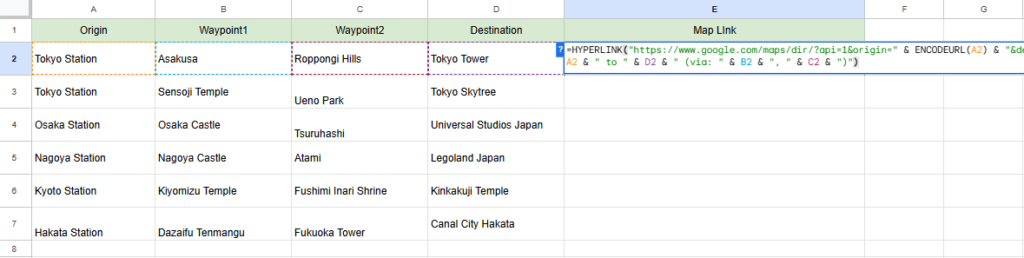
Enter the following formula in column E
A route link is generated based on the contents of columns A and B.
=HYPERLINK("https://www.google.com/maps/dir/?api=1&origin=" & ENCODEURL(A2) & "&destination=" & ENCODEURL(D2) & "&waypoints=" & ENCODEURL(B2) & "%7C" & ENCODEURL(C2), "Route from " & A2 & " to " & D2 & " (via: " & B2 & ", " & C2 & ")")Formula Details
- origin
-
- Specify the origin entered in column A.
- destination
-
- Specify the destination entered in column D.
- waypoints
-
- The transit points in columns B and C are specified as multiple transit points, separated by “|”.
%7C-
It means the “|” (pipe) symbol in URL encoding format.
This formula generates a link with the display name “Route from origin to destination (via: waypoint 1, waypoint 2)”.
When you click on the link, the route through the two specified transit points will be displayed on Google Maps.
Formula input result (with route map link and waypoint)
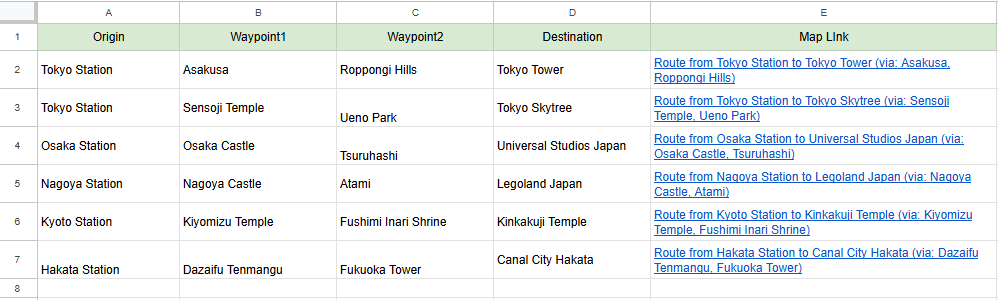
Google Maps (with routes and waypoints)
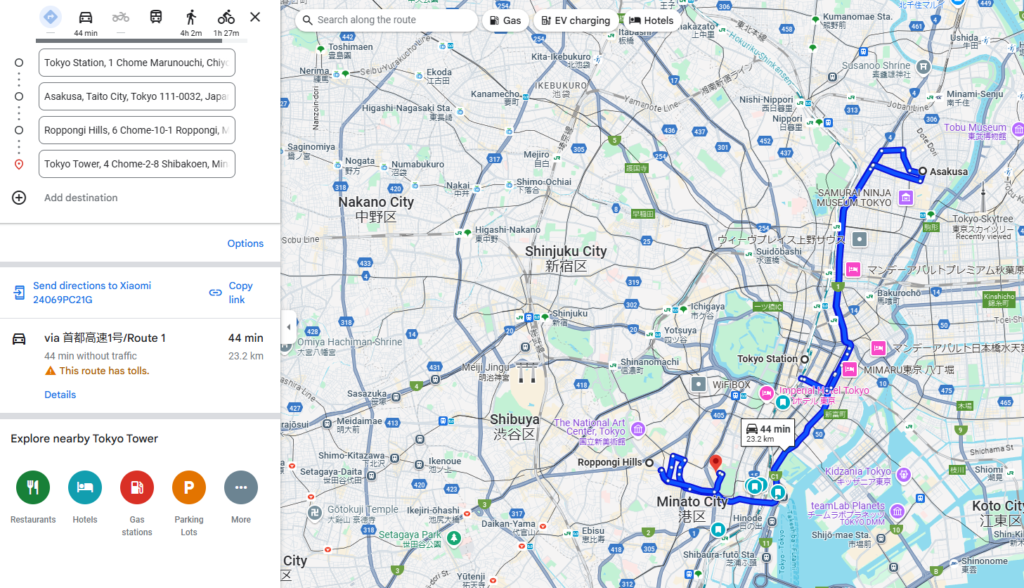
Route map links with multiple transit points are automatically generated from the spreadsheet.
Open the link to easily see the schedule through multiple locations.
Conclusion
Formula to generate map links for each location
=HYPERLINK("https://www.google.com/maps/search/?api=1&query=" & ENCODEURL(A2), A2 & " map link")Formula to generate route map links from origin and destination
=HYPERLINK("https://www.google.com/maps/dir/?api=1&origin=" & ENCODEURL(A2) & "&destination=" & ENCODEURL(B2), "Route from " & A2 & " to " & B2)Formula to add waypoints and generate a route link
=HYPERLINK("https://www.google.com/maps/dir/?api=1&origin=" & ENCODEURL(A2) & "&destination=" & ENCODEURL(D2) & "&waypoints=" & ENCODEURL(B2) & "%7C" & ENCODEURL(C2), "Route from " & A2 & " to " & D2 & " (via: " & B2 & ", " & C2 & ")")If you open Google Maps directly to search, you need to display one at a time, but from a spreadsheet, you can easily create multiple map links at once.
If there are a number of points or routes to be checked, this formula can be used to manage them efficiently.



Our company offers support for improving work efficiency through the use of Google Apps Script.
If you need assistance with Google Apps Script customization or error resolution, please feel free to contact us.
We are fully committed to supporting your business improvements.
Contact us here
- Link ChatGPT with Google Sheets: Boost Efficiency Using Google Apps Script and ChatGPT API
- Google Sheets Shortcut Keys List: Solve Your Shortcut Problems and Improve Productivity
関連記事
-
 Google Calendar Free Time Finder Template|Google Sheets × Apps Script
 -
How to Find Common Free Time in Google Calendar: Manage Shared Schedules with Google Apps Script
-
Ready-to-Use Google Calendar to Sheets Export Template| Google Sheets & Apps Script
-
Export Google Calendar Events to a Spreadsheet|Easily Get Schedules for Multiple Users with Google Apps Script
-
Gmail Draft Duplication Template | Attachments Supported! Automate with Google Sheets × Apps Script
-
Gmail Bulk Sending Template | Easily Send to Multiple Recipients via Google Sheets
-
Google News Fetch Template: Streamline Information Gathering with Google Apps Script and Google Sheets
-
Google Sheets YouTube API: Retrieve and List 500+ Videos with Apps Script